Members
Invite people to an organization, choose their role, and remove them later.
Members
Everyone who can sign in to an organization is a member with exactly one role. Membership is managed from Settings → Members, and every write there is gated the same way the backend gates it, so a control you cannot use is disabled rather than hidden.
Roles at a glance
| Role | Can do |
|---|---|
| Owner | Everything, including billing and deleting the organization. Every org has at least one Owner and the backend refuses to remove the last one. |
| Admin | Manages members, teams and resources, bounded by the no-escalation rule (it cannot grant a permission it does not itself hold, and cannot touch Owner-only actions). |
| Editor | Creates and edits resources. |
| Viewer | Read-only. |
These four are the built-in system roles. An Owner or Admin can also clone one into a custom role with a different permission set (see Roles and permissions).
Inviting someone
- Go to Settings → Members.
- Under Invite a member, enter an email address and pick a role (Viewer, Editor or Admin; Owner is not offered at invite time).
- Click Send invite.
The invitation appears under Pending invitations until it is accepted or revoked. Only an Owner or Admin sees the invite form and the members list at all; everyone else who opens the page is told which role is required.
A plan limits how many members you can have
Every plan caps team size (the Free plan on this walk allows exactly 1).
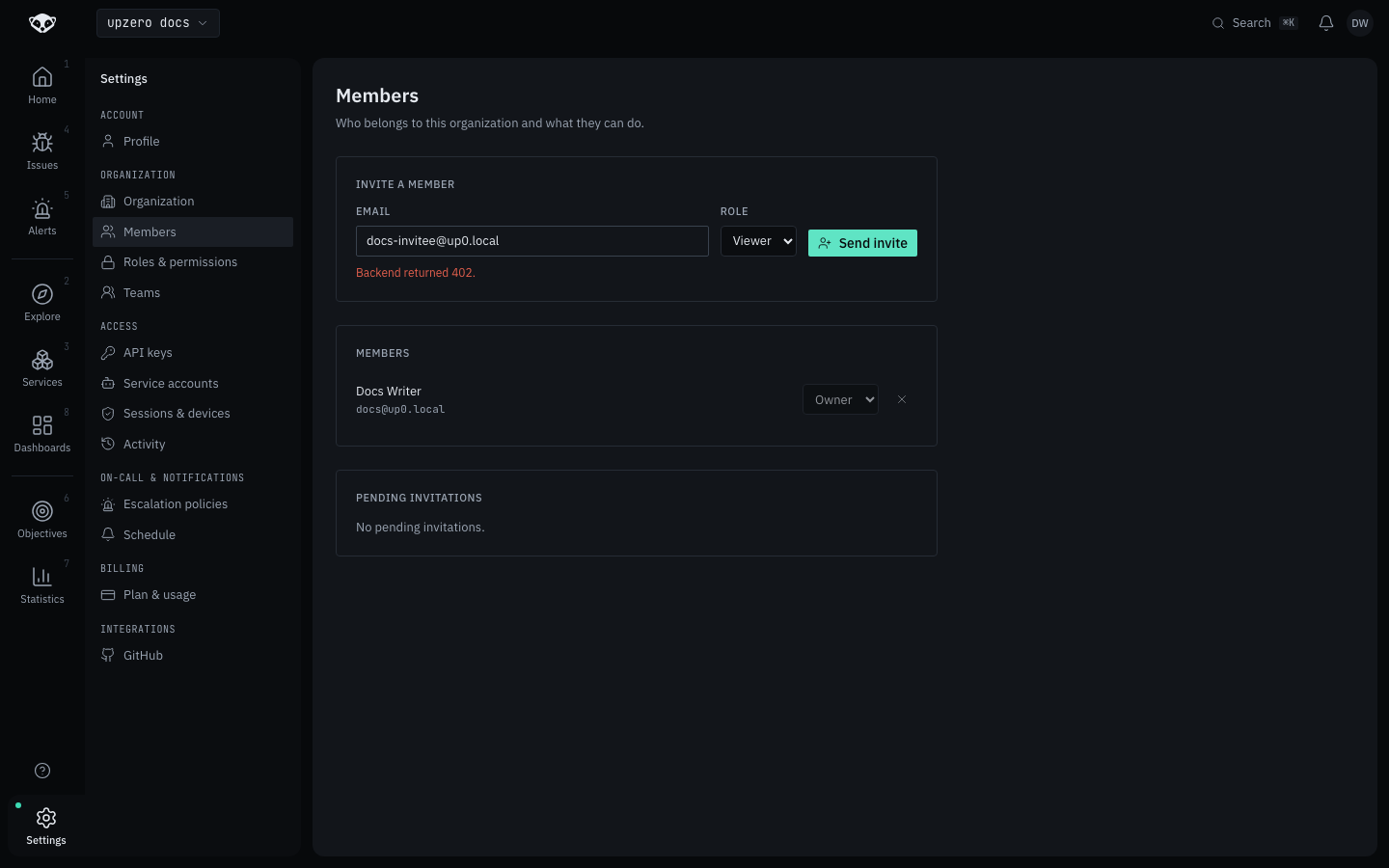
Sending an invite that would exceed the plan's max_team_members fails with
a plan-limit error rather than creating a member who cannot really be
billed for. See Billing and plans.
Walked live on kind as the Owner of a single-member Free-plan organization: inviting a second address failed exactly this way, in the UI, with the invite form staying filled in so the address doesn't have to be retyped.
Accepting an invitation
The invitation email links to /invite?token=.... That page is public (a
logged-out invitee can see who invited them and to which organization before
signing in):
- If the visitor is not signed in, it offers Sign in to accept, which sends them through Zitadel and back to the same link.
- Once signed in, Accept invitation joins the organization at the invited role and lands on the console home, scoped to that organization.
An invitation that has expired, already been accepted, or been revoked shows "Invitation not available" rather than a raw error.
Changing a role or removing someone
The members list shows every current member with a role selector (Owner-only action) and a remove button. Both are disabled, with the reason shown, for cases the backend would refuse anyway:
- You cannot remove yourself.
- You cannot remove or downgrade the organization's last remaining Owner.
Removing a member takes effect immediately; it does not delete anything they created.
Pending invitations
Any Owner or Admin can see the list of outstanding invitations and revoke one before it is accepted. A revoked invitation's link stops working.
What isn't here
Members are org-scoped and human. Machine callers (CI pipelines, agents) use a separate identity kind with its own page: see Service accounts.